
Data Transfer
External Downloads
Downloading of data must not be done on compute nodes via interactive sessions or submitted jobs. Downloads of any sort should only be performed on login nodes. Small downloads are fine to do on the standard set of cluster login nodes. Larger datasets should be downloaded on little/large.
Data Transfer Nodes
little and large (.cs.ucl.ac.uk) are dedicated data transfer cluster login nodes, with higher outbound network bandwith to facilitate downloads of large datasets. Cluster users do not have access to these nodes by default, please contact us with some information about the transfer you want to do and we shall advise and give access if appropriate. In any event where you have a large amount of data to download (1TB or above), please let us know and we can advise if necessary. Long distance data transfers (transatlantic or similar distances) require some attention to get them working as quickly as possible, please contact us if you need to do one.
Data Transfer Softwares
This page contains instructions on using Data Transfer softwares to move data to the cluster. If your preferred method of data transfer is not listed below, feel free to get in contact with us. For information on SSH and SCP, please see here.
Aspera Connect
1. Download and install browser extension and client.
2. In the Aspera client choose Preferences.
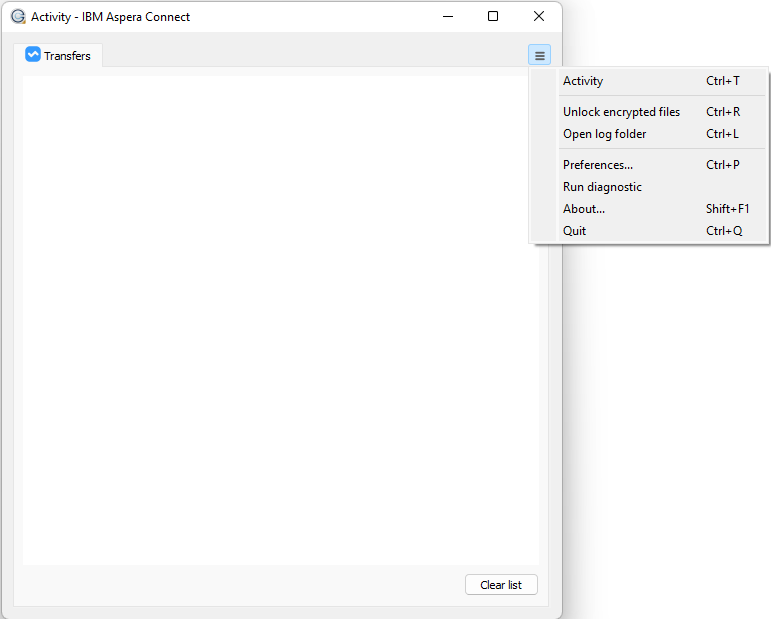
3. In Transfer tab set Maximum concurrent transfers to 1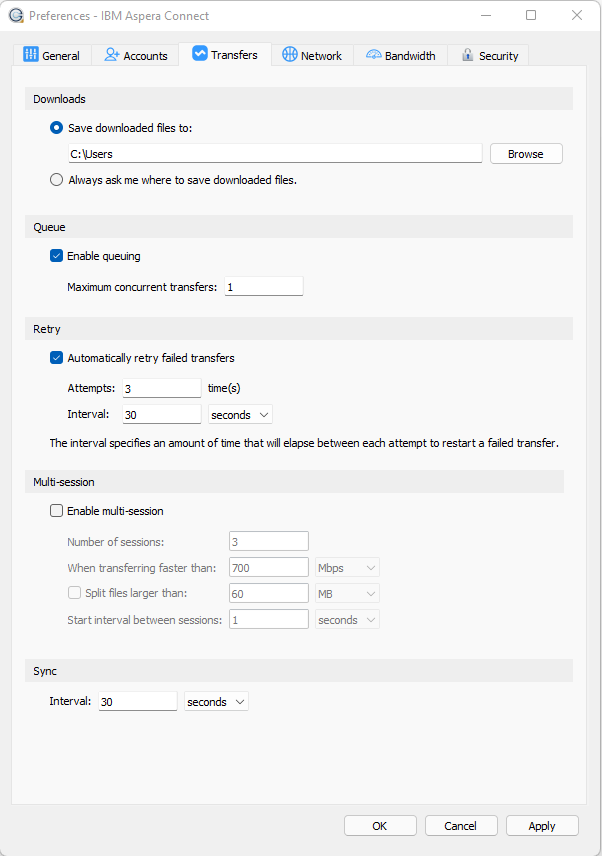
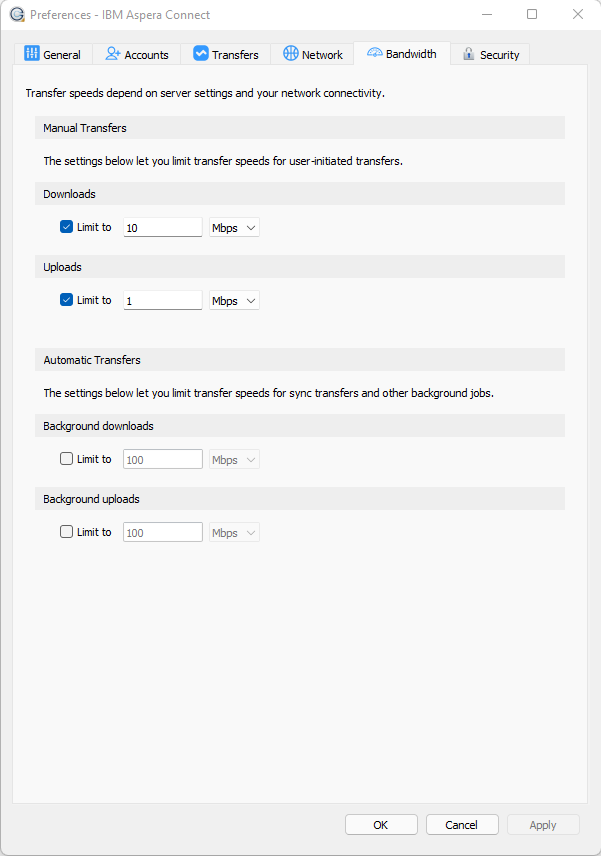
4. In the bandwidth tab check Downloads limit to and set to 700Mbps
5. In the bandwidth tab check Uploads limit and set to 700Mbps
Aspera CLI
Before running Aspera, run:
export PATH=/share/apps/aspera-3.9.6.1467/cli/bin:$PATH
Basic transfer:
ascp -l 700m user@server:directory/source-file /path/to/destination-file
Transfer using public key authentication:
ascp -l 700m -i /path/to/key/file user@server:directory/source-file /path/to/destination-file
If any names have a space you need to wrap in quote e.g.:
ascp -l 700m "user@server:directory/source file" "/path/to/destination file"
WinSCP
On Windows 10 it’s easiest to use WinSCP.
1. Once you have WinSCP installed and running, go to:
Session -> New Session
2. On the next window:
Protocol: SFTP

hostname: <your normal login node>

port number: 22
3. Click Advanced:
In the left tree click Connection -> tunnel
Tick Connect through SSH tunnel
Host name: <your normal gateway node>

port number: 22

Local tunnel port: autoselect
4. Click OK.
5. Click Login.
6. Enter your username and password for <your normal gateway node>
7. Say yes to add its host key.
8. Enter your cluster username and password.
You should now be connected and able to drag files between the left pane (your local machine) and the right pane (the cluster).
Connecting to the Cluster using FileZilla
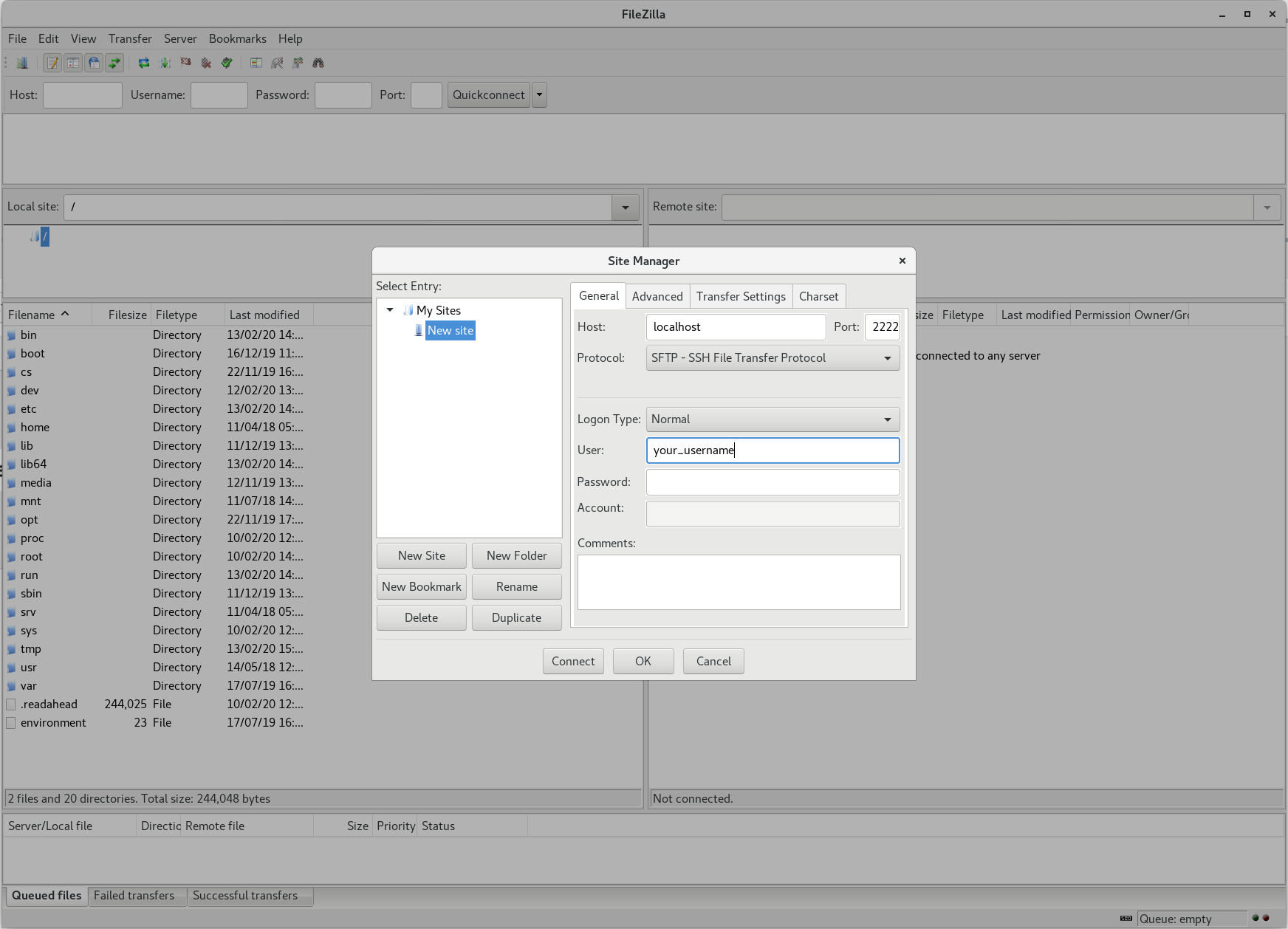
FileZilla doesn’t support tunneling natively. However, you can still implement the same tunnel using a combination of the command line and FileZilla. First, set up a tunnel to an appropriate login node using the terminal.
ssh -L 2222:<login node>:22 <username>@<gateway>
e.g:
ssh -L 2222:comic.cs.ucl.ac.uk:22 alice@tails.cs.ucl.ac.uk
Leave the terminal window open and open up FileZilla.
Create a New Site and use the following parameters:
Setting up a tunnel
If you are trying to copy data to and from the cluster from outside the Computer Science department, it might be necessary to set up a port forward so that you connect to a login node via a jump node. The command to set this up is:
ssh -L 2222:<login node>:22 <username>@<gateway>
For example, if your username was alice and you wanted to connect to the login node called ‘comic’ via the tails gateway server, the command would be:
ssh -L 2222:comic.cs.ucl.ac.uk:22 alice@tails.cs.ucl.ac.uk
Once you have set this up, anything you send to local port 2222 will be forwarded to port 22 on comic via tails (port 22 being the standard port for ssh).
At this point, leave the previous command (ssh -L) running, and open another terminal. You can now start using rsync to copy your data between the cluster and your local machine.
rsync basics
You can use rsync to either push files to the cluster, or pull them from the cluster. The command has the following form:
Pulling:
rsync [options] <username>@<remote_machine>:/path/to/file/ /path/to/local/destination
Pushing:
rsync [options] /path/to/local/file <username>@<remote_machine>:/path/to/remote/destination
rsync options
Usually rsync is used with the -av options. -a makes rsync preserve file permissions, as well as symlinks and other attributes. It also runs rsync in recursive mode, which is necessary to copy directories. -v stands for verbose, which can help with debugging. The -n flag can be used to do a ‘dry run’, where rsync will show the results of running the command you give it, without copying any files anywhere. This is important to do before running copies (especially large ones), as a malformed command can make a big mess in the destination directory. -e specifies an ssh command when making the connection to the remote location.
Example
To copy a directory structure from a local machine to a remote machine using the SSH tunnel setup:
rsync -avne "ssh -p 2222" /home/jbloggs/directory jbloggs@localhost:/path/to/destination
If the file structure in the output from the above command is satisfactory, then:
rsync -ave "ssh -p 2222" /home/jbloggs/directory jbloggs@localhost:/path/to/destination