
The Cluster
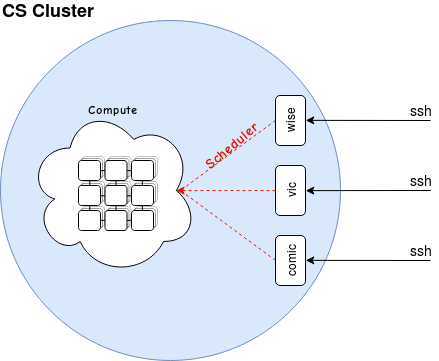
The cluster is made up of two main classes of nodes, login nodes and compute nodes.You connect to the cluster via login nodes. Once connected to a login nodes, you submit jobs to the scheduler. The scheduler then sends your job to an available node that matches the requirements set. The compute node will then run the job you’ve submitted.
Login Nodes
Login nodes (comic, vic, and wise for example) are where users will interact with the scheduler. You connect to them via ssh. For example:
ssh username@wise.cs.ucl.ac.uk
Login nodes are to be used for submitting jobs and moving data only.
Access
If you are within the CS network (connected to WIRELESS_PETE, CS_GUEST etc.) you can ssh directly to the CS Cluster login nodes. If you try to login directly and get an error, it is likely that you are not on the CS network.
You can access the CS Cluster from outside the CS network, by first logging into one of our gateway nodes.
These are: knuckles.cs.ucl.ac.uk for taught students and tails.cs.ucl.ac.uk for staff. To login, use the following command from your terminal:
ssh username@knuckles.cs.ucl.ac.uk
using your CS username.
Bash
The way you will interact with the cluster is via the command line. The shell you will be using is called bash. It is very important that you are comfortable with using bash before you can utilise the cluster properly.
Click here for a link to a basic bash tutorial. Once you are comfortable with these concepts, the intermediate tutorial is here. The topics covered in these two tutorials are directly relevant to using the cluster effectively.
CS Accounts
CS can provide you with a number of accounts, by default you should have a CS Unix account and a CS Windows account. These start off with the same credentials, however if you change the password of one (which is recommended) the change won’t sync automatically.
In addition, these are unrelated to your central UCL account, which will not be valid login details on CS systems.
Cluster Account
Your CS cluster account credentials start off as a copy of your CS Unix account details. This means that your login details for the cluster will initially be the same as your CS Unix account (at the time of creation).
Similarly, your cluster account is not synced with any others, so any password changes you make to your CS Unix will not be reflected in the cluster.
Home Directories
Your CS account has a home directory associated with it. This directory is shared between most managed CS systems, and any update will be shared with all other managed systems automatically.
The cluster has the same concept, however your cluster home directory is not synced with your main CS home directory. However, it is shared between all cluster nodes (login and compute). You have 50G of space, and it is not backed up.
Project Stores
Your home directory is limited to 50G, and is not backed up. This is generally not appropriate for computation involving large datasets, so we recommend users to make a request for a project store as soon as it is necessary. If you need a very large amount of storage, please come to room 4.20 Malet Place Engineering Building and we can discuss your project in more detail and find the most effective storage for your needs.
These project stores are usually mounted on the cluster, and can also be directly accessible from managed CS machines. We also allow for access from certain ranges of IP addresses if necessary.
Submitting Jobs
To use the cluster, you submit ‘jobs’ to the scheduler. This is done using the command qsub.
qsub
The command qsub can takes a path to a submission script as its argument.
qsub /path/to/submission/script/
Submission Scripts
#$ -S /bin/bash
#$ -l tmem=4G
#$ -l h_vmem=4G
#$ -l h_rt=10:00:00
…
run computation
The line #$ -S /bin/bash tells the scheduler to interpret the rest of the script as a bash script. This again is not strictly mandatory, however it does prevent potential bugs without affecting anything negatively.
The #$ combination of characters marks the following line as a scheduler directive. These are parameters that are passed to the scheduler to define the properties and resource requirements of your jobs.
Below is a more comprehensive list of scheduler directives:
| Flag | Options | Example | Definition |
|---|---|---|---|
| -l | tmem | #$ -l tmem=4G |
Amount of memory you wish to request. |
| h_vmem | #$ -l h_vmem=4G |
Hard limit on shell memory usage (ulimit). | |
| h_rt | #$ -l h_rt=1:00:00 |
Wall time. Maximum of 2000 hours CPU and 1000 hours GPU | |
| gpu | #$ -l gpu=true |
GPU request. | |
| tscratch | #$ -l tscratch=50G |
Requests scratch space. | |
| -S | /bin/bash | #$ -S /bin/bash |
Shell to be used. |
| -j | y | #$ -j y |
Merges STDOUT and STDERR. |
| -N | <name> | #$ -N my_new_job |
Gives your job a name. |
| -t | 1-n | #$ -t 1-10 |
Sets a task ‘incrementor’ variable. |
| -tc | n | #$ -tc 2 |
Concurrent task limiter. |
| -wd | /path/ | #$ -wd /home/jbloggs |
Start job from specified working directory. |
| -cwd | #$ -cwd |
Start job from current working directory. | |
| -R | y | #$ -R y |
Reserves requested resources. Mandatory for parallel environment jobs. |
| -pe | gpu n | #$ -pe gpu 2 |
GPU environment with 2 cards. |
| -pe | smp n | #$ -pe smp 4 |
Parallel environment with 4 cores. |
| -pe | mpi n | #$ -pe mpi 4 |
MPI environment with 4 cores. |
| -pe | mpirr n | #$ -pe mpirr 4 |
MPI environment with 4 cores, allocating cores based on round robin algorithm. |
qstat
Once you have submitted a job to the cluster, you can check the state of said job using the qstat command.
job-ID  prior   name       user         state submit/start at     queue                          slots ja-task-ID
-----------------------------------------------------------------------------------------------------------------
6506636 0.00000 testing    jbloggs      qw    21/12/2012 11:11:11                                    1
The submitted job is now waiting to be scheduled to a node. It has been assigned a job-ID, which you can use with qstat to get more detailed information on a specific job.
qstat -j <job-ID>
You’ll get output similar to the following:
[jbloggs@wise ~]$ qstat -j 6506712
==============================================================
job_number:                 6506712
exec_file:                  job_scripts/6506712
submission_time:            Fri Dec 21 11:11:11 2012
owner:                      jbloggs
uid:                        0
group:                      external
gid:                        0
sge_o_home:                 /home/jbloggs
sge_o_log_name:             jbloggs
sge_o_path:                 /usr/local/bin:/bin:/usr/bin:/usr/local/sbin:/usr/sbin:/sbin ...
sge_o_shell:                /bin/bash
sge_o_workdir:              /home/jbloggs
sge_o_host:                 wise
account:                    sge
hard resource_list:         h_vmem=2G,tmem=2G,h_rt=3600
mail_list:                  jbloggs@wise.local
notify:                     FALSE
job_name:                   testing
jobshare:                   0
shell_list:                 NONE:/bin/bash
env_list:
script_file:                testing.sub
project:                    csdept
scheduling info:            (Collecting of scheduler job information is turned off)
When the job starts running, you’ll get output similar to the following:
job-ID  prior   name       user         state submit/start at     queue                          slots ja-task-ID
-----------------------------------------------------------------------------------------------------------------
6506636 0.50612 testing    jbloggs      r     21/12/2012 11:11:11 all.q@burns-609-51.local           1
Another useful piece of information displayed by qstat is the state. The most common states you’ll see are qw and r. These stand for queue waiting and running respectively.
Below is a full list of possible states:
| State | Meaning |
|---|---|
| qw | Your job is waiting to be scheduled. |
| r | Your job is currently running. |
| t | Job is in the process of being transferred to another compute node. |
| s or S | Job has been suspended. |
| h | Job is being held. |
| E | Job has an error. |
| R | Job has been restarted (Rr), or is waiting to be restarted (Rq). |
| d | Job registered for deletion. |
| a or A | Job is in alarm state. |
| u | Job is in an unknown state. |
qdel
Use qdel to delete a job that has already been submitted. You can only delete a job that you have submitted.
The command takes a job-ID as an argument:
qdel <job-ID>
qrsh
The cluster is not a development environment. However, there are a few nodes reserved for testing and profiling.
To use these, you have to make a request to the scheduler. The following command will allocate you an interactive session on one of the test nodes:
qrsh -l tmem=14G,h_vmem=14G,h_rt=00:59:59
Once scheduled, you will be on one of the test nodes. You can then run your code via the command line. Running your code does not require you to write a submission script and qsub to the cluster, just run your code from the command line.
There are also two slots reserved on a GPU node for the same purpose, to access these run the following command:
qrsh -l tmem=14G,h_rt=00:59:59,gpu=true
Cluster Software
There is a central directory of software for use on the cluster. It is located at /share/apps . Please check this directory (and relevant sub-directories) for the software you are trying to use before you ask for it to be installed.
Within /share/apps is a directory called examples. This is where we store source scripts and example submission scripts.
For example, within /share/apps/source_files/python there is a file called python-3.8.5.source, which contains the following:
#Python 3.8.3 Source
export PATH=/share/apps/python-3.8.5-shared/bin:$PATH
export LD_LIBRARY_PATH=/share/apps/python-3.8.5-shared/lib:$LD_LIBRARY_PATH
This sets two bash variables (PATH and LD_LIBRARY_PATH), which will allow you to simply type python to run python v3.8.5 .
Please feel free to ask us about specific software and the corresponding environment setups you will need to run them. Either come to see us in person in room 4.20 Malet Place Engineering Building, or email cluster-support@cs.ucl.ac.uk .